The Ultimate Guide to Overclocking Intel Processors
Overclocking, the art of pushing your computer hardware beyond its factory-set limits, can unlock significant performance gains without spending a fortune on new components. While it was once a niche pursuit for tech enthusiasts, modern tools and guides have made it accessible to a wider audience. This article will focus on overclocking Intel processors, providing a step-by-step guide to safely and effectively boost your CPU’s speed.
Disclaimer: Overclocking can void your warranty and potentially damage your hardware if not done correctly. Proceed at your own risk, and take your time.
Why Overclock Your Intel Processor?
- Enhanced Performance: The primary reason to overclock is to increase the processing power of your CPU. This can lead to faster rendering times, smoother gaming experiences, and improved responsiveness in demanding applications.
- Cost Savings: Overclocking allows you to extract more performance from your existing hardware, potentially delaying the need for an expensive upgrade.
- Fun and Learning: For many, overclocking is a hobby, a way to experiment with hardware and understand how it works.
Before You Begin: Prerequisites
- Compatible Hardware:
- Unlocked Processor: Intel processors with a "K" at the end of their model number (e.g., i7-13700K, i9-12900K) are designed for overclocking. Non-K processors have limited or no overclocking capabilities.
- Overclocking-Capable Motherboard: Your motherboard must support overclocking. Chipsets like Z790, Z690, Z590, Z490, Z390, and Z370 (for older generations) are typically required. Check your motherboard’s manual for compatibility.
- Effective CPU Cooler: Overclocking generates more heat, so a high-quality CPU cooler is essential. Air coolers like the Noctua NH-D15 or liquid coolers (AIOs) like the Corsair iCUE H150i Elite LCD are popular choices.
- Sufficient Power Supply: Ensure your power supply unit (PSU) has enough wattage to handle the increased power draw of an overclocked CPU. A PSU with a rating of 650W or higher is generally recommended for high-end CPUs.
- Fast RAM: While not strictly required, faster RAM can improve overall system performance, especially in CPU-bound tasks.
- Software Tools:
- CPU-Z: A utility for monitoring CPU clock speeds, voltages, and other vital information.
- HWMonitor: Provides detailed temperature readings for your CPU, motherboard, and other components.
- Stress Testing Software: Programs like Prime95, AIDA64, Cinebench, or OCCT (OverClock Checking Tool) are used to load your CPU and test its stability under overclocked conditions.
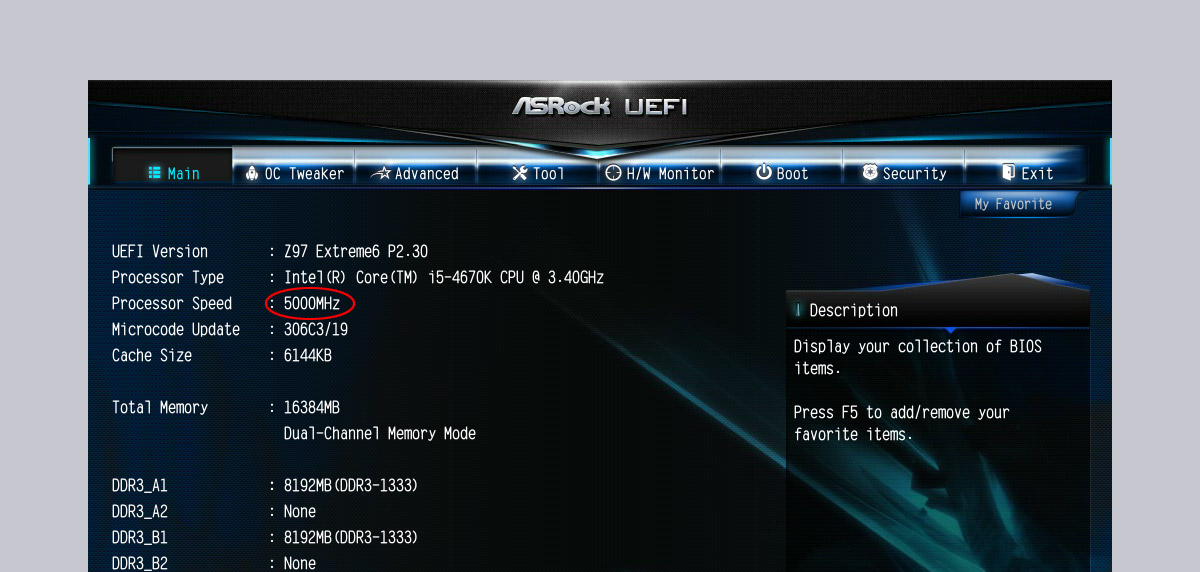
- BIOS/UEFI Access: You’ll need to access your motherboard’s BIOS or UEFI (Unified Extensible Firmware Interface) to adjust CPU settings.
- Knowledge and Patience: Overclocking is a process of experimentation. Be prepared to spend time tweaking settings, testing stability, and learning from your experiences.
Step-by-Step Overclocking Guide
-
Preparation:
- Research: Read up on your specific CPU and motherboard to understand their overclocking potential and limitations.
- Update BIOS: Ensure your motherboard has the latest BIOS version, as it may include performance improvements and bug fixes.
- Record Baseline Performance: Run a benchmark test (e.g., Cinebench) at stock settings to have a baseline for comparison.
- Monitor Temperatures: Check your CPU temperature at idle and under load using HWMonitor. This will give you an idea of your cooling system’s performance.
-
Entering the BIOS/UEFI:
- Restart your computer and press the designated key to enter the BIOS/UEFI setup. This key is usually displayed on the screen during startup (e.g., Del, F2, F12).
-
Adjusting CPU Settings:
- CPU Ratio (Multiplier): This setting determines the CPU’s clock speed. The clock speed is calculated by multiplying the base clock (BCLK) by the CPU ratio. For example, a BCLK of 100MHz and a CPU ratio of 45 results in a clock speed of 4.5GHz.
- CPU Core Voltage (Vcore): This is the voltage supplied to the CPU. Increasing the voltage allows for higher clock speeds but also generates more heat. Start with small voltage increases (e.g., 0.01V) and monitor temperatures closely.
- XMP (Extreme Memory Profile): Enable XMP to run your RAM at its advertised speed and timings.
- Load-Line Calibration (LLC): This setting compensates for voltage droop under load. Experiment with different LLC levels to find the most stable setting.
- Disable Power-Saving Features: Disable features like Intel SpeedStep (EIST) and C-states, as they can interfere with overclocking stability.
-
Incrementally Increasing Clock Speed:
- Start by increasing the CPU ratio by a small amount (e.g., 1 or 2).
- Increase the Vcore by a small amount (e.g., 0.01V).
- Save the changes and exit the BIOS/UEFI.
- Boot into Windows and run a stress test for at least 30 minutes.
- Monitor CPU temperatures and stability.
-
Stress Testing and Stability:
- If the system crashes or produces errors during the stress test, increase the Vcore slightly and try again.
- If the temperatures exceed safe limits (typically 85-90°C), reduce the clock speed or improve your cooling system.
- Once you find a stable clock speed, run a longer stress test (e.g., several hours) to ensure long-term stability.
-
Fine-Tuning and Advanced Techniques:
- BCLK Overclocking: Instead of only adjusting the multiplier, some enthusiasts also overclock the base clock (BCLK). This can provide additional performance gains, but it can also be more challenging to stabilize.
- AVX Offset: Modern CPUs use AVX instructions for certain workloads, which can generate a significant amount of heat. An AVX offset allows you to reduce the clock speed when AVX instructions are being used.
- Adaptive Voltage: Instead of using a fixed Vcore, you can use adaptive voltage, which adjusts the voltage based on the CPU’s workload.
- Per-Core Overclocking: Some motherboards allow you to overclock each CPU core individually, which can be useful for optimizing performance in multi-threaded applications.
Safety and Troubleshooting
- Temperature Monitoring: Keep a close eye on CPU temperatures throughout the overclocking process. Exceeding safe temperature limits can damage your CPU.
- Voltage Limits: Avoid exceeding recommended voltage limits for your CPU.
- Blue Screens of Death (BSODs): BSODs are often a sign of instability. Reduce the clock speed or increase the Vcore.
- System Won’t Boot: If your system won’t boot after making changes in the BIOS/UEFI, reset the BIOS to its default settings by removing the CMOS battery or using the CMOS reset jumper.
- Research: Always research before making changes.
Conclusion
Overclocking Intel processors can be a rewarding experience, allowing you to unlock hidden performance potential and improve your system’s capabilities. By following this guide and taking the time to learn about your hardware, you can safely and effectively overclock your CPU and enjoy the benefits of increased performance. Remember to proceed with caution, monitor your temperatures, and be patient as you fine-tune your settings.