Choosing the Right Motherboard: A Comprehensive Guide
The motherboard is the backbone of your computer. It’s the central hub that connects all the essential components – the CPU, RAM, graphics card, storage devices, and peripherals. Choosing the right motherboard is crucial for building a stable, high-performing, and upgradeable system. A wrong choice can limit your system’s potential, create compatibility issues, or even lead to costly replacements down the line. This guide will walk you through the key considerations to help you make an informed decision.
1. CPU Compatibility: The Foundation
The first and most critical step is ensuring compatibility with your chosen Central Processing Unit (CPU). Motherboards are designed to support specific CPU sockets, which are the physical interfaces where the CPU plugs into the board.
- Identifying the Socket: Intel and AMD, the two major CPU manufacturers, use different socket types. For example, Intel might use LGA 1700 for its latest generation CPUs, while AMD might use AM5. Always check the CPU specifications to identify the correct socket type. Mismatched sockets will physically prevent you from installing the CPU, and attempting to force it can damage both the CPU and the motherboard.
- Chipset Compatibility: Beyond the socket, the motherboard chipset also needs to be compatible with your CPU. The chipset is a set of chips that manage communication between the CPU and other components. Manufacturers create different chipsets for various CPU generations and performance tiers. For instance, a high-end Intel CPU might require a Z-series chipset motherboard, while a mid-range CPU might work well with a B-series chipset. Refer to the motherboard and CPU specifications to confirm chipset compatibility.
- Future-Proofing Considerations: While focusing on current compatibility, think about future upgrades. Some newer sockets and chipsets are designed to support future CPU generations, offering a longer lifespan for your motherboard. Research the manufacturer’s roadmap for the socket type to gauge its potential for future CPU upgrades. However, remember that future-proofing is a balancing act. Technology evolves rapidly, and sometimes it’s more cost-effective to upgrade the entire platform (CPU, motherboard, and RAM) after several years rather than trying to extend the lifespan of an older platform.
2. Form Factor: Size Matters
The form factor determines the physical size and shape of the motherboard, influencing case compatibility and the number of expansion slots available.
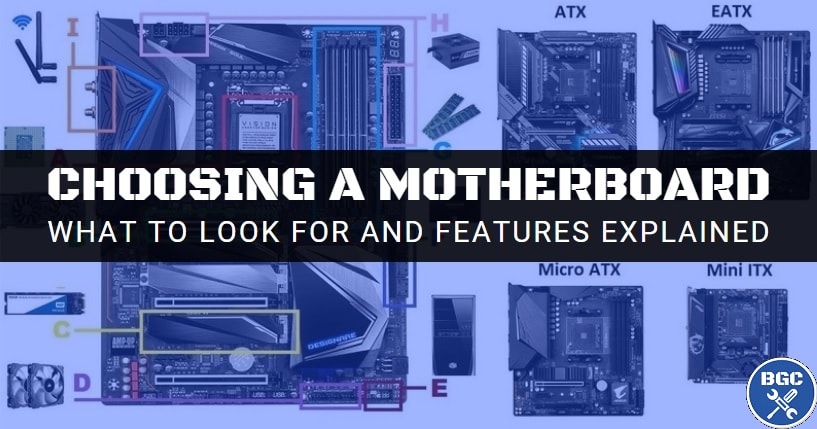
- ATX (Advanced Technology Extended): The most common form factor, offering a good balance of size, features, and expansion slots. ATX motherboards typically have seven expansion slots, allowing for multiple graphics cards, sound cards, and other add-in cards. They also provide ample space for RAM slots, storage connectors, and I/O ports.
- Micro-ATX: A smaller version of ATX, offering a compromise between size and functionality. Micro-ATX boards usually have fewer expansion slots (typically four), making them suitable for smaller cases and systems with fewer expansion needs.
- Mini-ITX: The smallest common form factor, ideal for compact, space-saving builds. Mini-ITX boards have only one expansion slot, limiting upgrade options. They are commonly used in small form factor (SFF) PCs, home theater PCs (HTPCs), and embedded systems.
- Extended ATX (E-ATX): Larger than ATX, providing even more expansion slots and features. E-ATX boards are typically used in high-end gaming rigs, workstations, and servers that require multiple graphics cards, large amounts of RAM, and extensive storage options.
Choose the form factor that best suits your case size and expansion needs. Consider the number of components you plan to install and the available space in your case.
3. RAM (Memory) Support: Speed and Capacity
The motherboard dictates the type, speed, and capacity of RAM (Random Access Memory) that your system can use.
- DDR (Double Data Rate) Standard: Motherboards support specific DDR standards (e.g., DDR4, DDR5). Ensure the motherboard supports the type of RAM you intend to use. DDR5 is the newer standard, offering faster speeds and higher bandwidth than DDR4, but it also requires a compatible motherboard and is generally more expensive.
- Maximum RAM Capacity: The motherboard specifies the maximum amount of RAM it can support (e.g., 128GB, 256GB). Determine your RAM needs based on your intended use. Gamers and content creators often benefit from larger RAM capacities.
- RAM Speed (MHz): The motherboard supports specific RAM speeds (e.g., 3200MHz, 3600MHz, 4000MHz). Higher RAM speeds can improve system performance, especially in memory-intensive tasks. Check the CPU specifications to see the officially supported RAM speeds. While you can often use faster RAM, it might require enabling XMP (Extreme Memory Profile) in the BIOS to achieve the advertised speeds.
- Number of RAM Slots: The number of RAM slots determines how many RAM modules you can install. ATX boards typically have four slots, while Micro-ATX boards may have two or four. Consider your future upgrade plans when choosing the number of RAM slots.
- Dual-Channel/Quad-Channel Support: Most modern motherboards support dual-channel or quad-channel memory configurations. Installing RAM modules in the correct slots to enable these configurations can significantly improve memory bandwidth and performance. Consult the motherboard manual for the recommended RAM slot configuration.
4. Expansion Slots: Adding Functionality
Expansion slots allow you to add extra functionality to your system, such as graphics cards, sound cards, network cards, and storage controllers.
- PCIe (Peripheral Component Interconnect Express): The primary expansion slot type used for graphics cards and other high-bandwidth devices. PCIe slots come in different sizes (x1, x4, x8, x16), with x16 being the most common for graphics cards. The number of PCIe lanes (the data pathways) also varies. Ensure the motherboard has the appropriate number and type of PCIe slots for your needs.
- PCI (Peripheral Component Interconnect): An older expansion slot type, still found on some motherboards for legacy devices.
- M.2 Slots: Dedicated slots for M.2 NVMe SSDs (Solid State Drives), offering significantly faster storage speeds than traditional SATA SSDs. The number of M.2 slots is an important consideration if you plan to use multiple NVMe SSDs. Check the supported M.2 sizes (e.g., 2280, 22110) and whether the slots support PCIe or SATA interfaces.
- SATA Ports: Connectors for SATA SSDs and HDDs (Hard Disk Drives). The number of SATA ports determines how many SATA storage devices you can connect.
5. Storage Options: Speed and Capacity
The motherboard provides various storage connectors for connecting SSDs and HDDs.
- M.2 NVMe SSD Support: As mentioned earlier, M.2 slots are crucial for high-performance storage. Consider the number of M.2 slots and the supported PCIe generation (e.g., PCIe 4.0, PCIe 5.0) for maximum speed.
- SATA Ports: Ensure the motherboard has enough SATA ports for your storage needs. Some SATA ports may be disabled when an M.2 slot is in use, so check the motherboard manual for details.
- RAID Support: Some motherboards support RAID (Redundant Array of Independent Disks) configurations, allowing you to combine multiple drives for increased performance, redundancy, or both.
6. I/O Ports: Connectivity
The Input/Output (I/O) ports on the rear panel provide connectivity for peripherals, displays, and networking.
- USB Ports: Consider the number and type of USB ports (e.g., USB 3.2 Gen 1, USB 3.2 Gen 2, USB-C). USB-C ports are increasingly common and offer faster data transfer speeds and power delivery.
- Display Outputs: Ensure the motherboard has the appropriate display outputs (e.g., HDMI, DisplayPort) for your monitor(s). Note that these outputs only function if you are using a CPU with integrated graphics. If you have a dedicated graphics card, you will use the outputs on the graphics card instead.
- Audio Jacks: Analog audio jacks for connecting speakers, headphones, and microphones.
- Ethernet Port: For wired network connectivity. Some motherboards offer faster Ethernet speeds (e.g., 2.5Gbps) than the standard 1Gbps.
- Wireless Connectivity (Wi-Fi): Some motherboards include built-in Wi-Fi and Bluetooth.
7. Features and Extras: Enhancements
Motherboards often come with additional features that can enhance your experience.
- VRM (Voltage Regulator Module): The VRM regulates power to the CPU. A robust VRM is essential for stable overclocking and reliable performance, especially with high-end CPUs.
- Heatsinks and Cooling: Look for motherboards with adequate heatsinks on the VRM and chipset to prevent overheating. Some motherboards also include headers for connecting case fans or liquid coolers.
- RGB Lighting: If you’re interested in aesthetics, choose a motherboard with RGB lighting and customizable lighting effects.
- BIOS Features: The BIOS (Basic Input/Output System) is the firmware that controls the motherboard. Look for a motherboard with a user-friendly BIOS interface and features like XMP support for RAM overclocking and fan speed control.
- Onboard Audio: The quality of the onboard audio can vary. If you are an audiophile, you may want to consider a motherboard with a high-end audio codec or a dedicated sound card.
8. Budget: Finding the Sweet Spot
Motherboard prices can range from affordable to very expensive. Set a budget and try to find a motherboard that meets your needs without breaking the bank. Consider prioritizing features that are most important to you.
9. Brand Reputation and Reviews:
Research different motherboard brands and read reviews from other users. Brands like ASUS, MSI, Gigabyte, and ASRock are generally well-regarded. User reviews can provide valuable insights into the motherboard’s reliability, performance, and ease of use.
10. Conclusion:
Choosing the right motherboard is a critical step in building a computer. By carefully considering the factors outlined in this guide, you can select a motherboard that meets your needs, provides a stable foundation for your system, and allows for future upgrades. Take your time, do your research, and choose wisely. Good luck!